You'll need Mobile App Access first. It's included with Premium, or Free members can add it for £4.99/month from the Mobile App Access message in Discord. Once it's active, follow the steps below.
Install the app
Android: open the Android testing link and install it: Zephyr Monitors Android app.
iPhone: install Apple's TestFlight app from the App Store, then open the TestFlight link Officer Jenny sent you in Discord. iPhone places are limited, so the link is only shared with members who have an iPhone place.
Log in with Discord
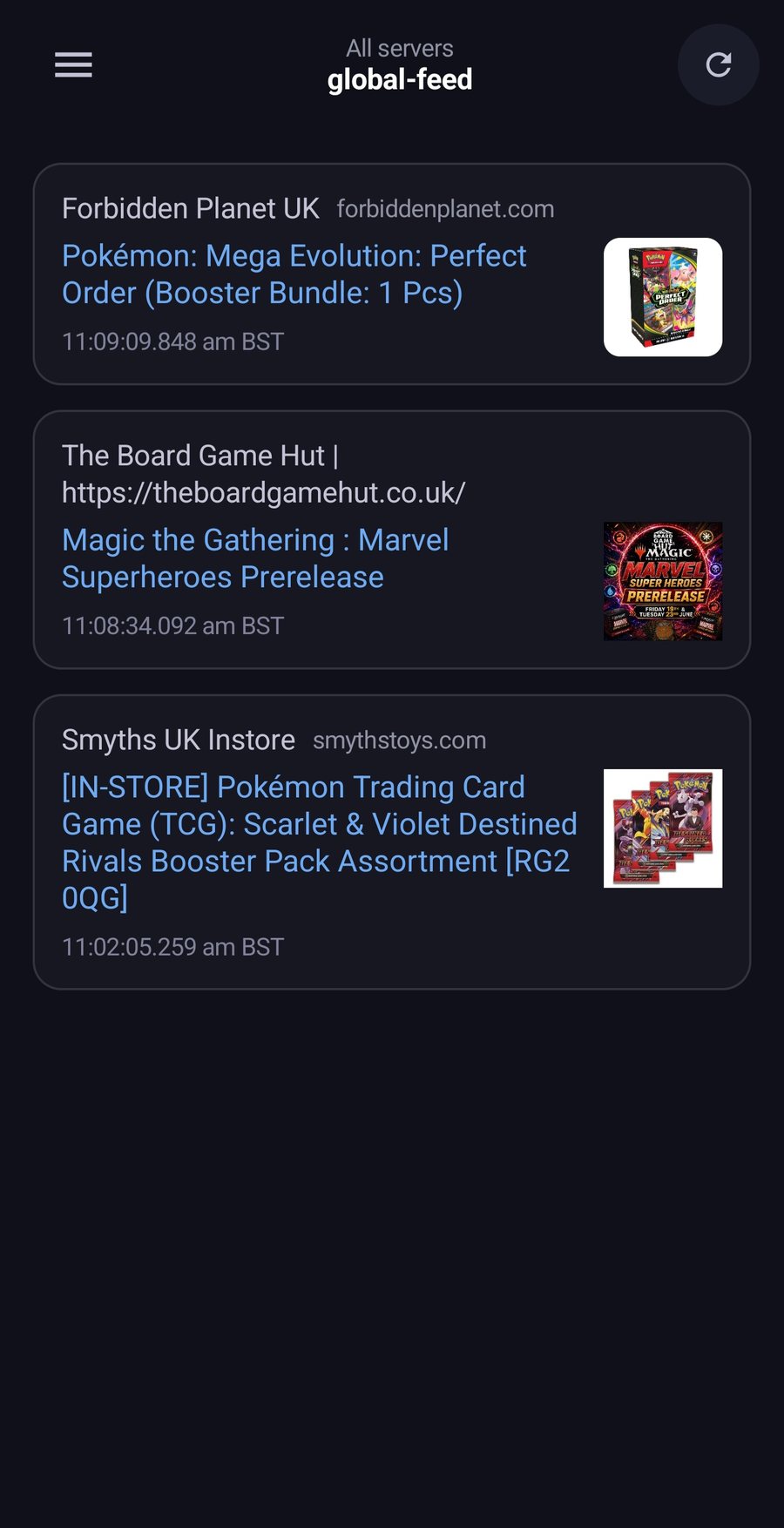
Open the app and sign in with your Discord account. You'll land on the main screen. First-time users won't have any notifications set up yet, and notifications are off by default.
Open notification settings
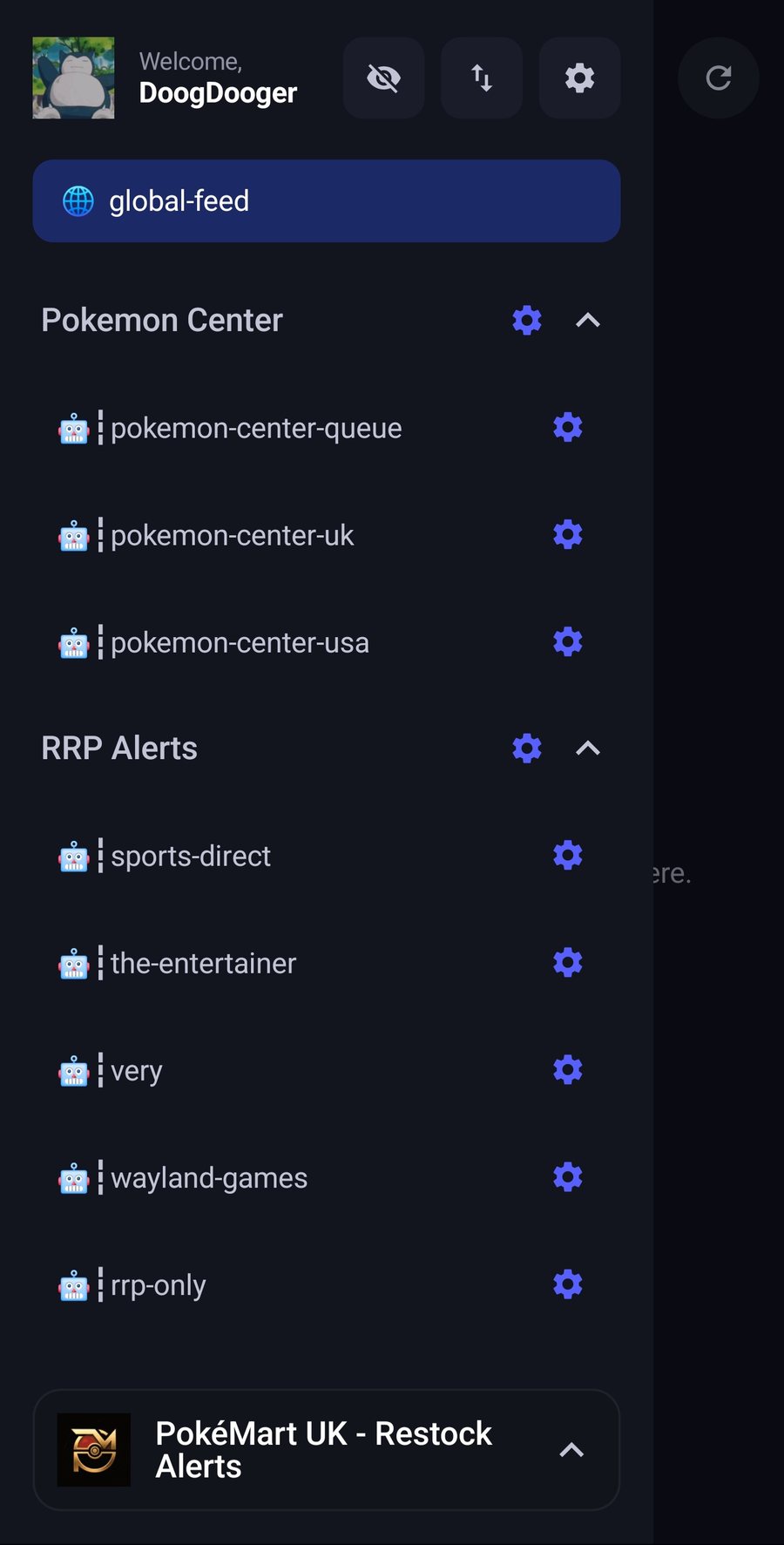
Tap the sidebar icon in the top-left to see the sections and channels. A section works like a Discord category: the channels inside it inherit the section's settings by default.
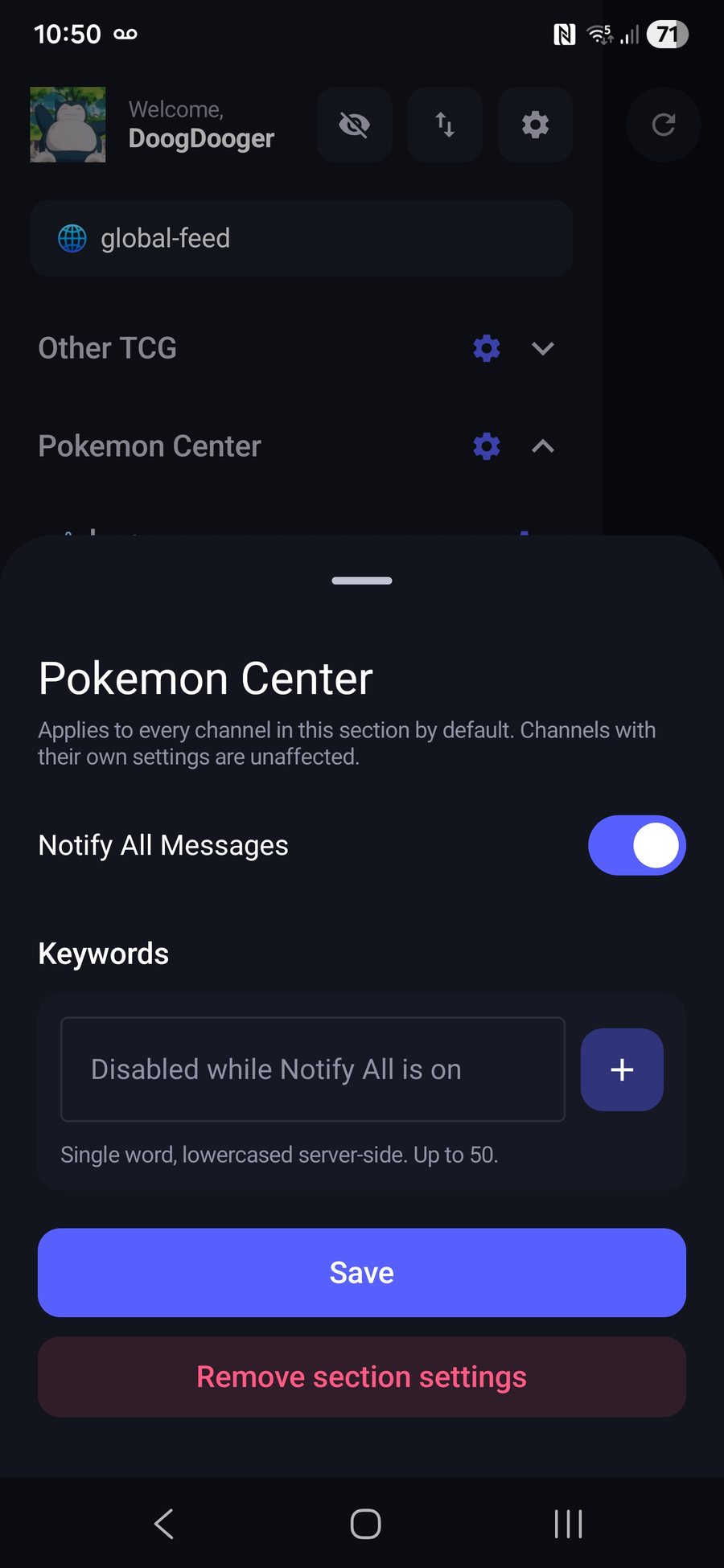
Tap the settings icon on any section or channel to open its notification options.
Choose what you're alerted about
Turn on Notify All Messages to get a push for every alert in that channel, or add keyword alerts to only hear about what you care about.
Keywords are single words and accents are ignored, so pokemon also
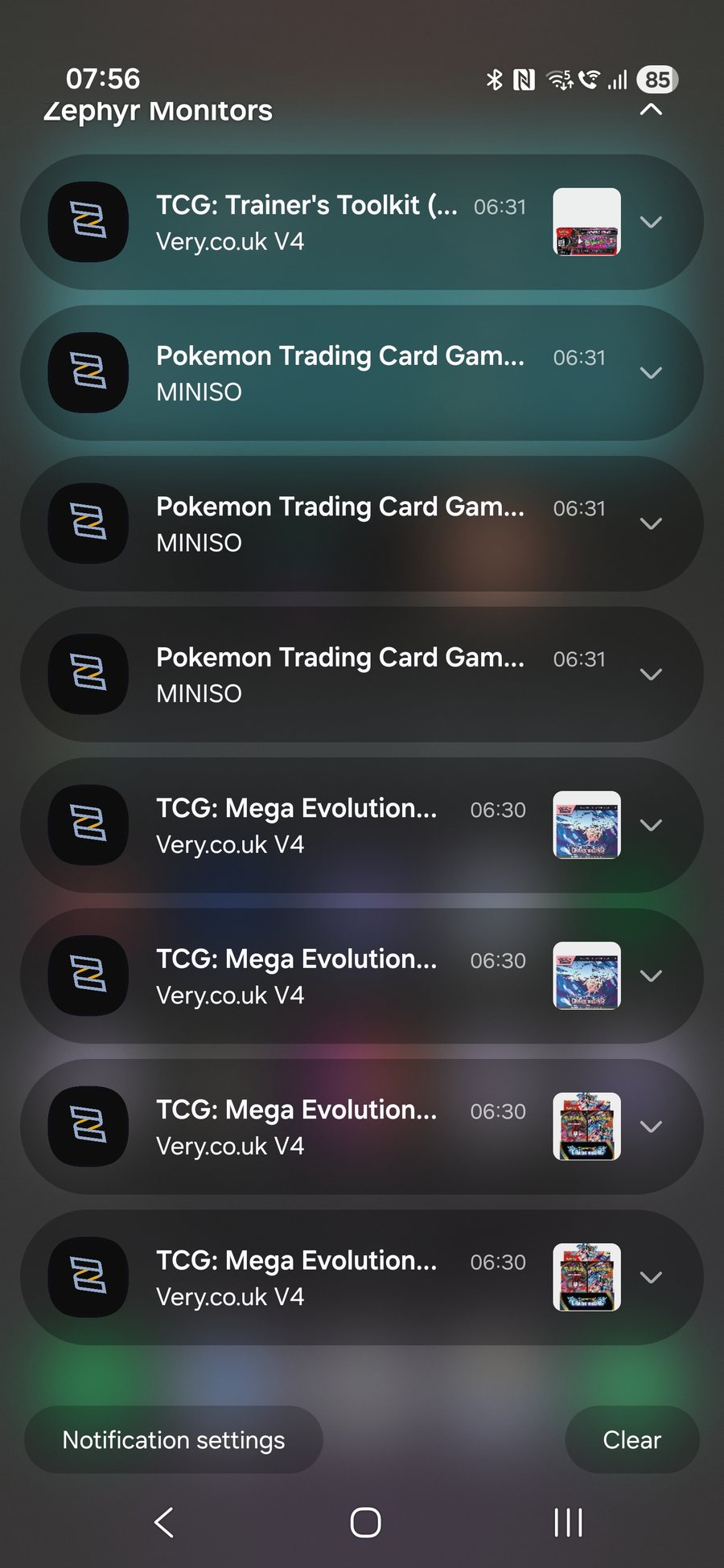
matches Pokémon. Press save and you'll start getting push notifications for matches.
Need a hand? After activation, Officer Jenny DMs you this guide and your app link so they're saved. You can switch device with Choose / change device on the Mobile App Access or Premium message. If you get stuck, open a Support Ticket in Discord and the team will help.
See it in action
From the channel list to the moment an alert lands on your phone.
Tap any screen to enlarge.
Not in the Discord yet?
Join PokéMart UK first, verify, then grab Mobile App Access to take alerts with you.